Dental Website Accessibility: WCAG Basics Every Practice Should Check Before 2027
Website accessibility matters for patients and for risk. Here are the WCAG basics a dental practice should check, from forms to images and color contrast.
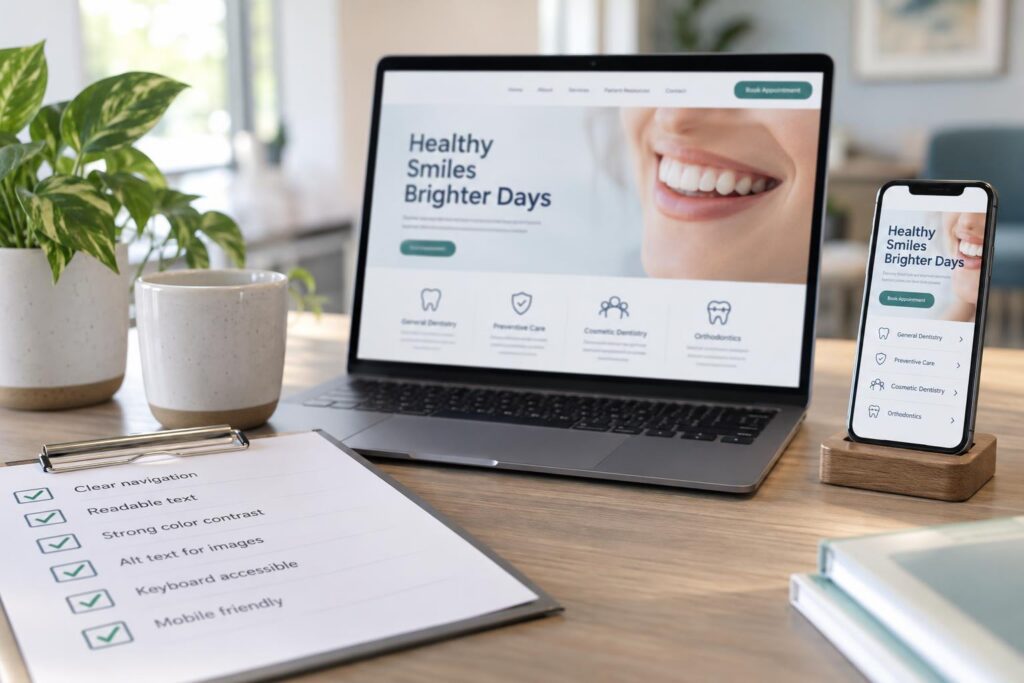
Can someone request an appointment if they cannot use a mouse or read small, low-contrast text? That is a useful starting question for a dental website accessibility review. As a dental practice, begin with the tasks patients need to complete, then examine the standards and legal requirements that apply to the practice.
We recommend reviewing the full appointment path, including third-party tools. An accessible-looking homepage does not help much if the scheduler, form error, or downloadable instructions prevent a person from continuing.
Separate a testing reference from a legal conclusion
WCAG provides a structured accessibility reference, including WCAG 2.2. It should not be described as the identical legal requirement for every private dental practice.
For recipients covered by the relevant HHS funding rule, the May 2026 extension moved the WCAG 2.1 AA web and mobile dates to May 11, 2027 for recipients with at least 15 employees, and May 10, 2028 for smaller recipients. Determine applicability rather than assuming every practice has the same deadline.
Other accessibility obligations may also matter. Have the practice’s adviser review its circumstances. A marketing checklist, automated scan, or vendor badge is not a legal determination that the website complies with every applicable requirement.
The practical work does not need to wait for a broad compliance claim. If a patient cannot operate the booking form, identify the barrier, assign the repair, and test the result.
Test the appointment path with a keyboard
Begin at the homepage and move through the page without a mouse. Can you reach the appointment link, open the navigation, move through the form, and submit a test request through an approved testing process?
Watch where keyboard focus appears. The user should be able to tell which control is active. Check whether menus, popups, or embedded schedulers trap movement or require a pointer-only gesture.
Test the confirmation step too. A form that accepts information but leaves the person unsure whether it worked still creates a problem. Identify how success and errors are communicated.
Use test data rather than a real patient record. Coordinate with the office so a test request does not create a misleading appointment or expose personal information in a broadly shared report.
Inspect labels and errors in context
Every input should have a meaningful label. A faint placeholder that disappears when typing begins is not a reliable substitute for persistent identification of the field.
Check required fields and error messages. Does the page explain what needs correction in words, or only highlight a box in red? Can the person find the error and understand how to proceed?
Review instructions for dates, phone numbers, and other constrained entries. If the form expects a particular format, explain it clearly. Avoid making a person repeatedly guess why a valid-looking response is rejected.
Ask whether each field is necessary at this stage. Collecting less information can simplify the task, but have the practice decide what is appropriate for its scheduling and privacy workflow.
Review the content people need before visiting
Check the readability of appointment instructions, office details, and explanations of the next step. Use descriptive headings and link text so the page remains understandable when someone navigates by structure rather than reading every line.
For images that convey useful information, provide an appropriate text alternative. Decorative images should not distract from the page’s meaning. Do not stuff location keywords into alternative text that is supposed to describe an image.
Review video captions and any information conveyed only through audio. If a video explains arrival instructions, ensure the relevant information is also available in an accessible form.
Inspect PDFs and other downloads. A scanned form may look readable to a sighted reviewer while being difficult to use with assistive technology. Ask whether the document needs remediation or whether an accessible web version would better serve the task.
Include the scheduler and other third-party components
List the tools a patient encounters: scheduler, contact form, chat widget, payment link, map, and document viewer. Identify who can change each one and how the practice reports a barrier to the vendor.
Do not assume a third-party product is accessible because the main website is. Test the actual embedded or linked experience used by the practice, including mobile behavior and the transition between systems.
If a vendor cannot promptly resolve a barrier, work with the practice on an appropriate alternative while the underlying issue is addressed. The alternative should be explained clearly and should not become an excuse to leave the main problem unexamined.
Keep claims about the vendor’s accessibility limited to evidence the practice can review. A sales statement is not the same as a test of the patient journey on your site.
Prioritize barriers by the task they prevent
| Task | Barrier to inspect | Repair owner |
|---|---|---|
| Request an appointment | Keyboard access, labels, errors, confirmation | Website developer and scheduling owner |
| Choose the correct office | Clear location information and meaningful links | Office manager and content editor |
| Read preparation instructions | Accessible text, headings, and downloads | Clinical content reviewer and document owner |
| Watch an explanatory video | Captions and equivalent information | Media owner |
| Ask for assistance | A visible, usable contact route | Practice operations lead |
Record the page, affected task, observed barrier, proposed repair, and retest result. This is more actionable than a score without context. Start with barriers that prevent essential tasks, while maintaining a plan for the remaining findings.
Combine automated checks with manual testing and qualified accessibility review. Different methods reveal different issues. A clean automated result should not be presented as proof that every person can use the site.
Make local access information accurate
Ask each office to verify the entrance, suite, appointment arrangements, and the contact route for accommodation questions. Do not infer physical accessibility features from a building photograph.
If you describe a specific entrance or parking arrangement, confirm it with the people responsible for the premises. Keep the website aligned with the instructions staff give by phone.
For multi-location practices, make clear which details belong to which office. A single accessibility statement should not imply identical physical arrangements everywhere when the practice has not verified that.
Use authentic, approved photographs when they help explain arrival, with useful text descriptions. Local detail should help someone plan a visit rather than serve as a decorative list of nearby landmarks.
Retest after ordinary website changes
Accessibility can be affected by a new booking tool, a redesigned menu, an uploaded PDF, or a promotional popup. Add relevant checks to the release process rather than treating the review as a one-time project.
Give content editors a short set of publishing practices: use logical headings, descriptive links, appropriate image alternatives, and accessible documents. Give developers responsibility for interactive behavior and component changes.
Keep an issue owner and review date. A finding assigned to “the website team” can remain unresolved if nobody knows who has authority to change the affected tool.
Write a useful accessibility defect report
Describe the task, the page or component, the steps used, and the observed barrier. “The appointment form is inaccessible” is difficult to act on. “Keyboard movement reaches the date selector but cannot continue to the next field” gives the developer a reproducible starting point.
Include the testing context and avoid presenting one method as a complete accessibility assessment. If the issue involves assistive technology, have an appropriately qualified reviewer help reproduce and evaluate it.
Define the expected result in terms of the user task. The repair should allow the person to select an available date and continue, not merely remove an automated warning. After the change, repeat the relevant steps and inspect adjacent behavior.
Keep the report free of real patient data. A test appointment or form entry should use the practice’s approved testing method. The office needs to know which records are tests so nobody follows up as if they were genuine requests.
Finally, record who can release the change. A verified fix in a development environment still needs an authorized deployment and a check on the live experience before the finding is closed.
Include the person responsible for third-party tools in the retest, so findings do not remain between vendors.
What people get wrong
Does an overlay or accessibility badge prove compliance?
No. Review the actual user tasks and the applicable requirements. A label is not a substitute for fixing barriers.
Is WCAG 2.2 the exact legal standard for every dental practice?
No. It is a useful technical reference, while legal applicability and specified versions require a separate review.
Can AI write all image descriptions automatically?
It can suggest wording, but someone must check the image’s purpose and accuracy. An invented detail or keyword-filled description can make the experience worse.
Will accessibility work guarantee AI visibility?
No. The purpose is to make the site more usable and address identified barriers. We do not promise a search outcome from a particular accessibility repair.
Can patients complete the essential tasks on your website?
Discuss the next step with Geeks for Growth for your U.S. practice or agency.
Explore Dental Marketing Services · Request Strategic Guidance · Browse Resources
Related Posts